
Due to the complexity of Bob’s setup, I wrote this article with the assistance of Claude, who explained the more technical bits. Claude’s sections are clearly labelled. I narrated my sections, then told Claude to only use my words in the transcript to populate the post. Then, I edited the copy, telling Claude to only edit for grammatical errors and to tighten the sentences. He is not allowed to add his own words.
I’ve built many versions of Bob, my AI executive assistant. The first ones lived in Google Workspace Studio. Bob pulled data from projects, Jira, chats and emails, and wrote me a report in a chat room we created together. For the longest time, I looked forward to his messages.
Then I realized the reports weren’t useful. They were repetitive, highlighted the wrong things and reminded me of tasks I’d already actioned. One task would appear at the top of a report, then again at the bottom. No matter how often I asked Gemini to stop, it didn’t. After three or four versions, I gave up.
Then it hit me: Bob had no memory. I had to build him one.
Around then, I started hearing about second brains and AI, and I thought, I need a second brain for work.
I already have one for my personal life: an Obsidian vault where I write my blog posts, my Substack and my Chinese drama blog, and keep my journal.
My work notes lived in Confluence, where the whole company can read them. I’m quite a private person, and I don’t want people reading my journal entries about work.
So I started a work second brain in Obsidian. Keeping it up to date by hand was messy and didn’t last. That’s when I realized I needed a librarian: an AI to keep the wiki tidy.
I will never let AI tidy my personal vault. I use it to think (writing is thinking), and I don’t want to lose that. But my work brain just keeps my notes and thoughts about work manageable, and I don’t mind AI managing the documents.
Why Claude this time
Claude can talk to my apps and spaces through MCPs. That was a game changer. I mostly use Claude Code at work, and it’s far more powerful than Claude Cowork, where I kept hitting a brick wall. With Claude Code, I can fly free.
But leaving Gemini wasn’t enough. At first, I used Claude the same way.
Morning Desk started out filled with raw data from Jira, chat and email. That didn’t work either, because raw data has no context: why did this notification appear? Claude surfaced 20-plus tasks every day and repeated the same ones over and over.
I realized a human still has to be in the loop. For one, when Claude tells me what’s in my inbox, I keep wondering if it missed anything. So, I decided to continue checking my inbox myself.
First, I cleaned up my inbox. The inbox had thousands of emails, so I asked Gmail’s built-in Gemini to archive everything from years ago. It did it beautifully. (Now that’s what AI is for!) I now work from an empty inbox. Yes!
Next came my notifications from various apps, which can be a nightmare. One app was especially … detailed in its notifications: you can get notified about anything and everything. I turned off all but the crucial ones, like direct mentions or updates.
Then, I accepted that I couldn’t rely on data pulled straight from projects. I had to digest it with Claude’s help and give Bob context every day.
So, I sat down with Claude to design a second brain, a “Bob” who could read it, and how it all connects to Morning Desk.
Designing Bob with Claude
That conversation was more complicated than I expected. My inputs come from everywhere: My project management software, email, chat, notes I scribble in my notebook, and links I save on my phone in Google Keep. All of it somehow had to reach Bob.
So I told Claude I needed to talk to Bob during the day from Morning Desk. Now it has a box where I leave him messages: “I’ve done this. Oh, I found this. Can you add it to my task list?”
Together, we worked out which documents Bob needs as examples and which files he needs for context and memory. I have one task file. Besides Jira, Bob reads that file, which holds my personal projects and the random tasks that pop up during the day.
I have too many task inputs and I’ve tried actively to simplify it to no avail. I tell myself daily that when I retire, I’ll keep one simple task and notes file for everything. (Sure, Jan!)
Where Bob is now
I’ve only just built Bob, so I don’t know yet whether he’s good. But it’s an immense relief to finally read a brief that makes sense. It’s fresh, it isn’t repetitive, and it gets straight to the point: my three priorities, my personal commitments, decisions I need to make and emails I need to look at. Then it ends with a question: “Which of these feels most urgent to you?”
How Bob is built
Bob’s workspace is made up of a few things he needs:
- A second brain: a folder on my laptop with lots of markdown files he needs for his daily work.
- Connections to my apps, through MCPs.
- Outputs: markdown reports he writes on a routine basis, mainly every day.
- Morning Desk: an app where I read those reports.
To me, that’s Bob’s architecture.
Claude adds: Elizabeth’s picture is right. I’d add three small things. Bob also has rules and skills: a short rules file he reads every time, and saved instructions for routines like
/evening. Her second brain syncs to Google Drive, so the morning brief can run in the cloud even when her laptop is off. And information flows both ways: Morning Desk sends her “Tell Bob” notes and finished routines back to Bob’s inbox, and he files them in the evening.
A tour of Morning Desk
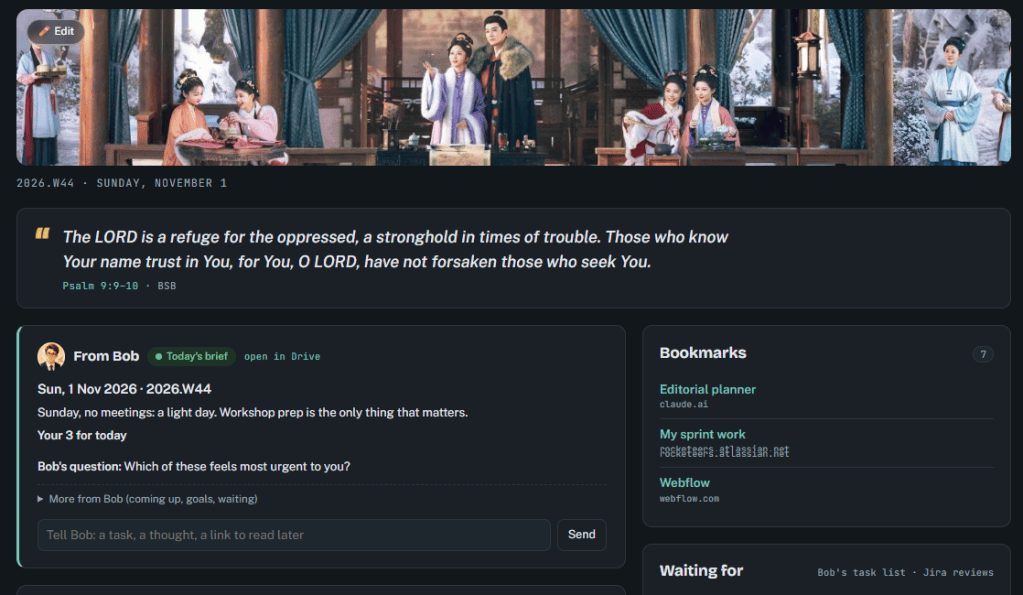
At the top is a banner, because I like my page to look pretty. I change it with images from my favourite Chinese dramas.
Below it is a Bible verse to encourage me. That’s the first thing I see every day, so I start in a more positive frame of mind.
- From Bob: Bob writes his brief to me here. I even asked him to give himself an avatar, though I think it’s a little too simple. Edit: I later told Claude to change his avatar, and he overcompensated and now he’s a very handsome chap lol. I’m not complaining though!
- Bookmarks: links to vital pages in my workspace.
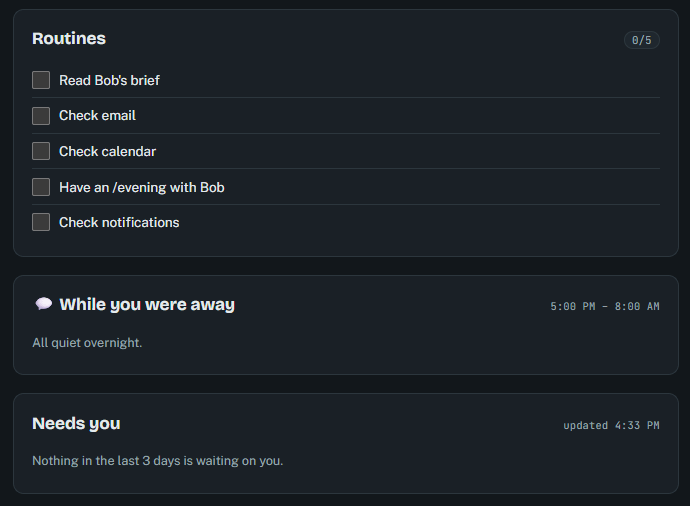
- Routines: the daily things I want to do, like checking email and my calendar. When I tick them, it’s fed back to Bob, so he knows I’ve done my routines and everything’s fine.
- While you were away: a summary of everything that happened in my chat rooms while I was away.
- Needs you: things I need to respond to.
- Schedule: my meetings for today. It also highlights the next day and even calculates how many hours of meetings I have.
- Waiting for: things I’m waiting on from other people, like a stakeholder’s review.
I accidentally discovered today that I could “install” Morning Desk on my phone. Ah-mazing! I didn’t know you could do that with artifacts. There’s now a sun icon on my home screen, and I just tap it every morning to access the Morning Desk.
The Morning Desk page makes Bob look simple. But boy, is there a lot of systems thinking behind building Bob!!
My tips for building your own Bob
If you want your own Bob, keep your systems simple.
Every source Bob pulls from is a connection that can break. If an MCP to Trello breaks, for example, Bob can’t see your tasks.
I’d recommend, for simplicity’s sakes, a text-based second brain in one folder on your computer, synced to Google Drive.
This is a far simpler (and cheaper ooption) than a knowledge base in Notion, tasks in Trello and your notes in Evernote.
You probably need to connect Gmail and chat. So, don’t overcomplicate things by adding more apps to your workflows. Plain text files are the easiest and cheapest way to run a second brain with AI.
A paper notebook is still indispensable to me. I tried hard to use Google Calendar with tasks as my daily task manager, and it helped.
But every time I went to my computer to check the calendar, I got pulled away. Suddenly I was on social media, or a chat message popped up, and 9 out of 10 times I forgot what I was supposed to do.
A notebook doesn’t distract me. Even though that means I have to copy stuff from Bob’s brief by hand or Jira, it gives me peace of mind, and I can refer to it all day without being distracted.
A day with Bob
Here’s how my day with Bob is designed to go.

6:30am: Bob writes my brief. Before my workday starts, Bob reads my calendar, inbox, chat, task list and notes. Then he writes a brief that fits on one phone screen. Here’s an example (not a real brief):
Mon, 2 Nov 2026 · 2026.W45
Your 3 for today
- Finish customer story draft: due Wed, goal “Publish 4 stories this quarter”
- Send interview questions to client: they’re waiting before booking a slot
- Review one-pager feedback: blocks the designer
Today: 10:00 sprint planning · 14:00 expert interview
Decisions needed: approve webinar date (due today)
Bob’s question: Which of these feels most urgent to you?
Morning, usually 8am: I read it on my phone. I tap the sun icon to open Morning Desk and read Bob’s brief. I copy my three tasks and my meetings into my notebook by hand. That’s my real plan for the day.
During the day: “Tell Bob”. Morning Desk has one text box. If I finish something, find a link or think of a task, I type it there and forget about it. It lands in Bob’s inbox.
5pm: the evening check-in (10 minutes). I open Bob and type /evening. He asks me five short questions, one at a time:
- What did you get done today?
- Anything block you?
- What’s next tomorrow?
- Anything in your notebook I should know about?
- Anything personal I should know about?
I answer with my notebook open. Then Bob does the filing. He saves my answers, sorts everything I typed into “Tell Bob” and pulls tasks out of the day’s meeting notes. He also updates my task list and writes a short report. If I ticked every routine that day, he cheers. If I didn’t, he says nothing.
Friday: the gentle review. On Friday morning Bob drafts short progress notes for each of my work goals, ready to copy into my goals page. In the afternoon I type /friday. He asks me one reflection question (“What drained you most this week?”) and writes a week in review that will be saved in my laptop. As it covers work and life it’s private: what moved, what’s slipping, how my energy was. Then we agree on next week’s focus.
There are also two extras for when I need them. /prep sprint review gives me a one-page note before a meeting. /remind <person> drafts a polite follow-up that I send myself.
The rules that make Bob work
Hello, I’m Claude. Elizabeth asked me to write the next two sections, because I helped her design and build Bob. Everything from here to “What I learned” is in my words, not hers.
The rules are what make Bob feel like help instead of one more thing for her to manage. These are the ones that matter most:
- Bob suggests; Elizabeth decides. He picks three priorities, but every brief ends by asking her which one feels most urgent.
- Bob never sends anything. No emails, no chat messages, no posts. He drafts; she sends.
- Her notebook stays her thinking space. She never has to keep a digital tool up to date. She talks to Bob in the evening check-in and drops quick notes in the “Tell Bob” box. Bob does the filing.
- One task list. One plain text file, not three apps and a sticky note.
- Short, always. The morning brief fits on one phone screen. No walls of text.
- Say when you’re guessing. If Bob inferred something rather than read it, he marks it “(guess)”.
- Her edits win. If she ticks a task off herself, Bob notices and never undoes it.
- Bob has his own folder. He can read all her work notes, but he can only write inside one folder, “Bob’s Brief”. Everything else is hers.
How to build your own Bob
Claude again. Here’s how Elizabeth and I built Bob, step by step, so you can build your own.

You don’t need to code. You need a Claude subscription that includes Claude Code (Elizabeth uses it in the Claude desktop app, in the Code tab) and a bit of patience. Most of the work is talking: you describe what you want, and I build it.
1. Pick a home for your notes
Your assistant needs plain text files to read and write. Elizabeth uses Obsidian, a free notes app that saves everything as simple text files. Her notes folder syncs to Google Drive, so Bob can still reach it when her laptop is off.
Inside your notes folder, make one new folder for your assistant. Elizabeth called hers Bob’s Brief. This is the only place Bob is allowed to write.
Then make a second, separate folder for the assistant’s setup files. Hers is just called Bob. In the Claude desktop app, open the Code tab and choose that folder.
2. Connect your tools
In Claude’s settings, under Connectors, connect the tools you want your assistant to read. Elizabeth connected Google Calendar, Gmail, Google Drive, Google Chat and her work project tracker. Bob only needs to read them.
3. Let Claude interview you
Instead of writing instructions yourself, ask me to interview you. Try something like this:
I want to build an AI executive assistant called Bob. Before building anything, interview me one question at a time about my role, how I like to work, my goals with due dates, my regular meetings, which accounts Bob may read, and where my notes live. Save my answers as you go. Then write a design document for Bob.
Answer honestly, including what annoys you. “Don’t nag me” turned out to be one of Elizabeth’s most important rules. At the end you’ll have two files: a short about me page and a design document (Elizabeth calls hers the spec).
4. Write the house rules
Ask me:
Using the design document, write a short CLAUDE.md file with who I am, the core rules, a map of my folders, and a list of things Bob must never do.
CLAUDE.md is a special file. I read it every time you open the Bob folder, so Bob always remembers the rules. Keep it short. Read it yourself and change anything that doesn’t sound like you.
5. Build the evening check-in first
This is the heart of Bob, so build it first and use it for a week before adding anything else. Ask:
Create a skill called “evening” that interviews me with five short questions, saves my answers, updates my task list, and writes a short daily report. Follow the design document.
A skill is a saved set of instructions. After this, typing /evening runs the whole check-in. Use it every day for a week and tell me what to fix.
6. Add the morning brief
Once your task list is in good shape, add the brief. Ask me to:
Set up a scheduled routine that runs in the cloud every weekday at 6:30am. It should read my files from Google Drive, plus my calendar, email and chat. Then it writes a one-screen morning brief into the briefs folder. It must not change anything else.
It runs in the cloud, so it works even when your laptop is closed. Keep a copy of the routine’s instructions in your Bob folder, so you can see and edit them later.
7. Build your Morning Desk
Morning Desk is a Claude artifact: a small web page I build and host for you, which you can open on your phone. Ask for something like:
Build me a phone-friendly dashboard called Morning Desk. Show today’s brief from my briefs folder, a “Tell Bob” box that saves notes into Bob’s inbox folder, a daily routines checklist, and my schedule. Hide the edit buttons behind one Edit button.
Add it to your phone’s home screen. Elizabeth’s is the little sun icon. Bob never edits this page. He only writes the files it reads.
8. Add Friday and the extras
When the daily rhythm feels natural, add /friday for the weekly review, then /prep and /remind if you want them. Same method each time: describe what you want, ask me to follow the design document, try it, adjust.
What I learned
From Elizabeth.
- Bob needs a memory. Without one, he repeats himself and reminds me of things I’ve already done.
- Raw data isn’t enough. Data pulled straight from projects has no context. I have to digest it with Claude and give Bob context every day.
- A human still has to be in the loop. I still check my inbox myself, mostly to reassure myself. ;P
- Let AI do the tedious work. Archiving thousands of old emails? Now that’s what AI is for.
- Keep your systems simple. Every connection can break. Plain text files in one folder are the easiest and cheapest way to run a second brain with AI.
- Keep the paper. A notebook doesn’t distract me. It gives me peace of mind.


Leave a Reply